In January 2026, we introduced a new backup method for Anchor Mobile. This new method utilizes a 12 word phrase that will be the backup phrase for the the initial account it's created with, as well as all subsequent created accounts. With this 12 word phrase, you will be able to recover all accounts created on this device.
This guide will walk you through the recovery of an account using this phrase. You can learn about the initial creation of this phrase in a separate guide that can be found here.
| Step 1 Begin Account Recovery This will walk you through recovering your account using a the 12 word pass phrase. To get to page shown, go to the Accounts page, select Add Account, and select Recover. To proceed, press “Recovery Phrase” | 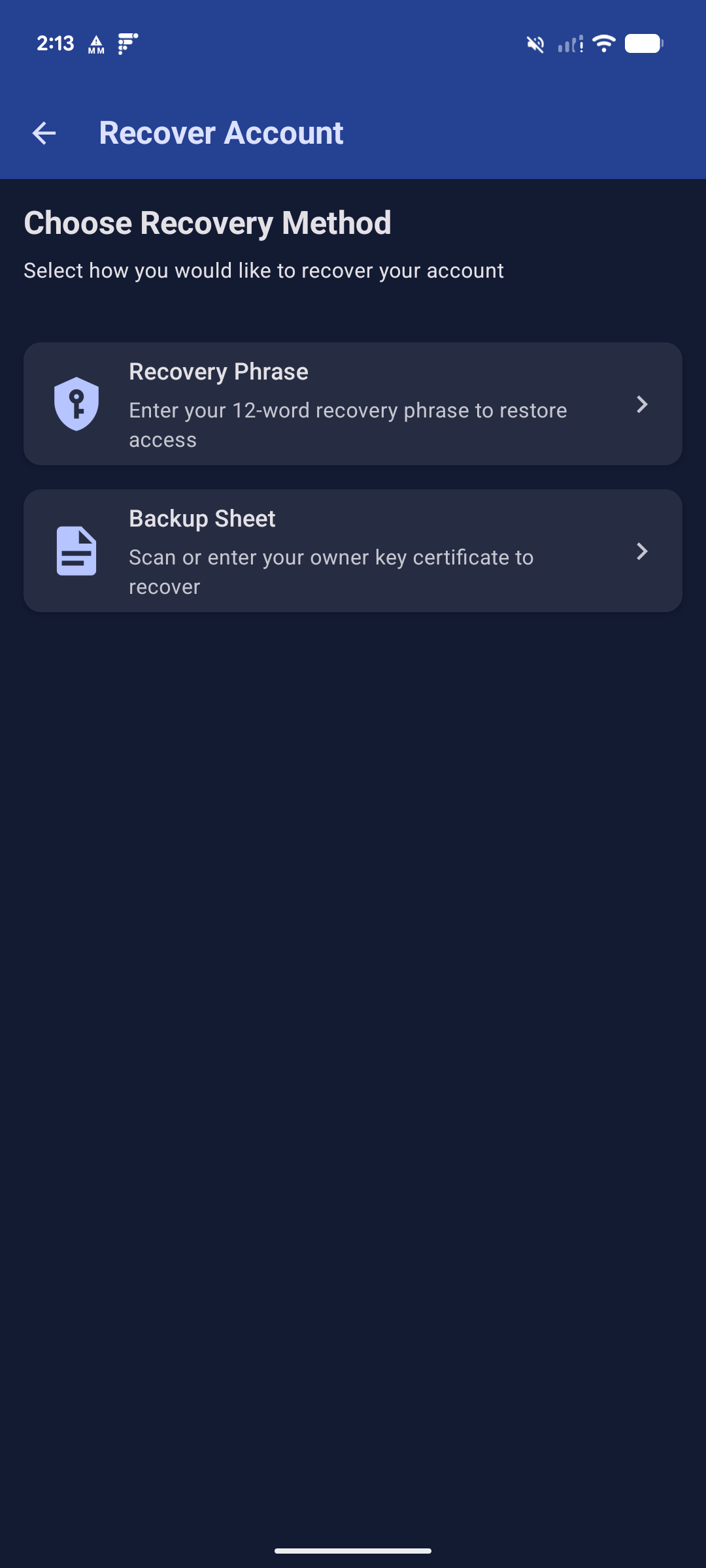 |
Step 2Enter Recovery PhraseOnce you enter the 12th word, you'll be automatically advanced to the next page. | 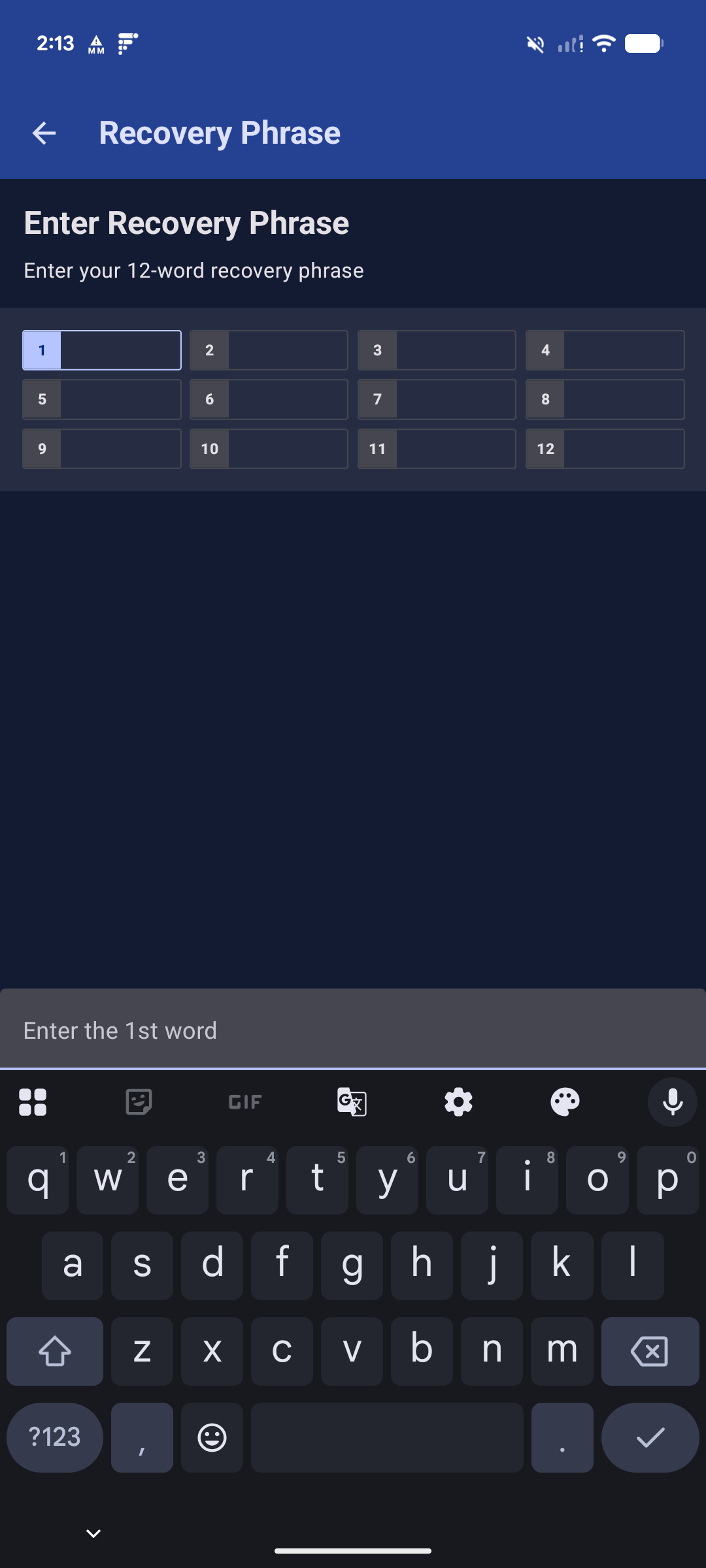 |
| Step3 Select Account to Recover After entering the pass phrase, you'll see all of the accounts that you have backed up using this phrase. Select the account you would like to recover to continue. | 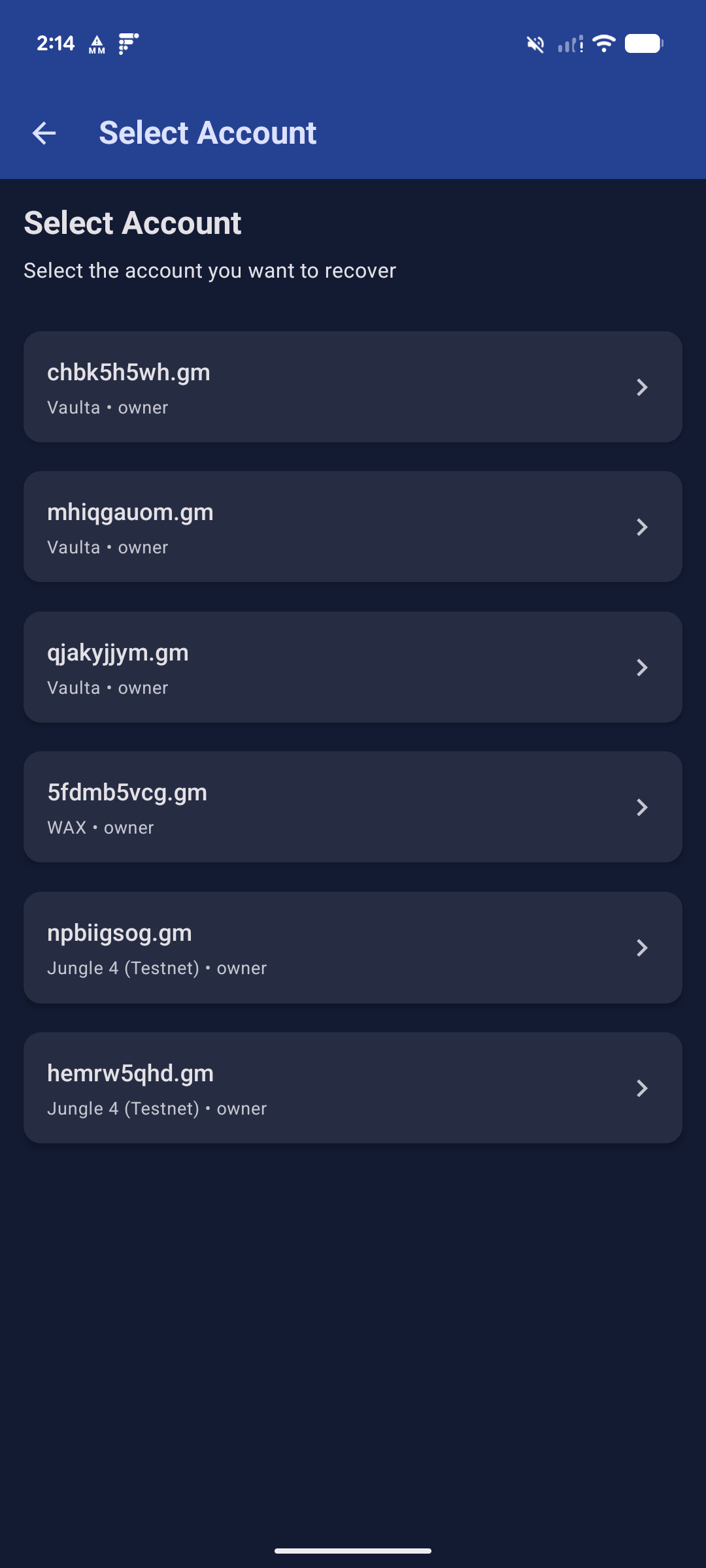 |
| Step 4 Add or Reset Keys At this point, the process returns to the standard account recovery process. On this page, you can select to add a key new key for this specific device or reset all the keys, therefore invalidating any previous keys for this account on other devices. The screen will advance once you make a selection | 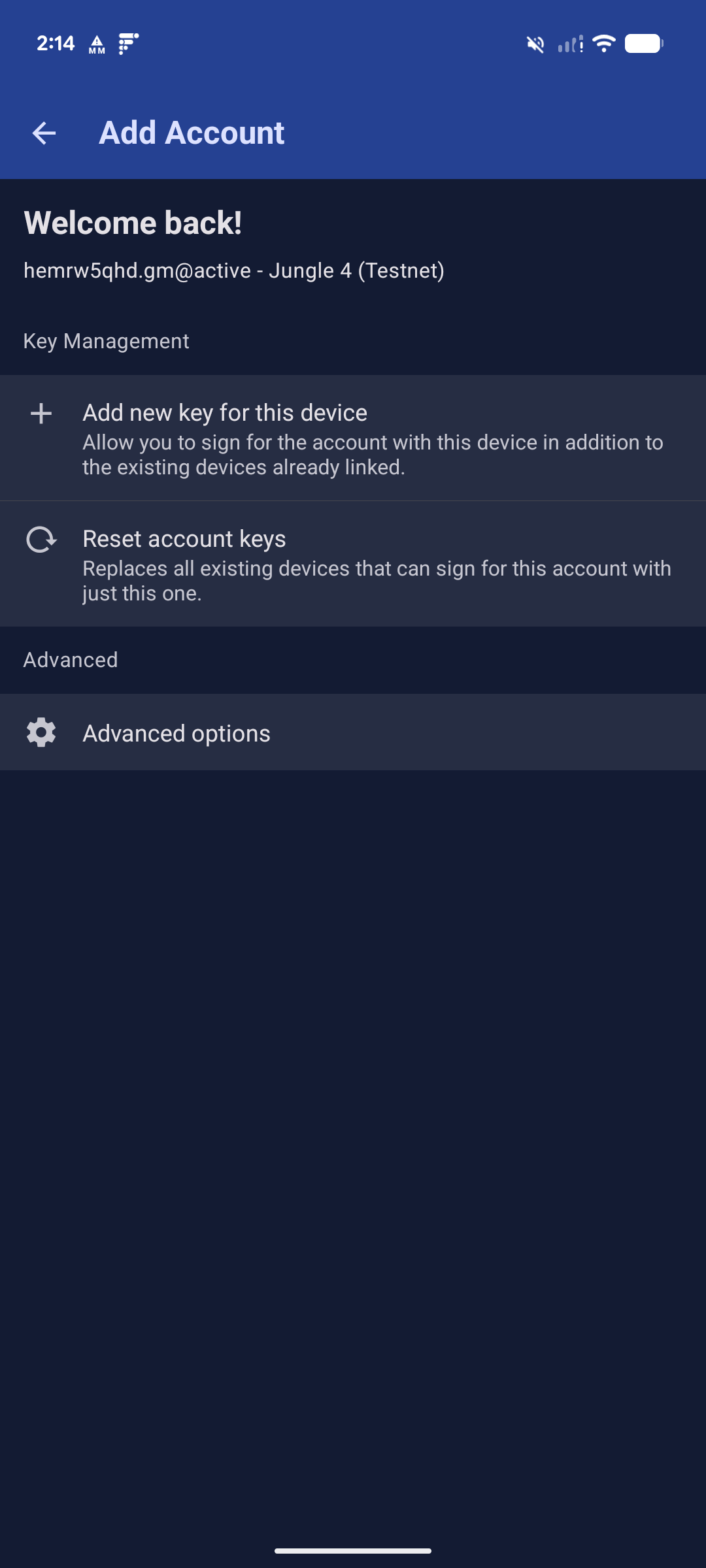 |
| Step 5 Confirm Recovery On this last step, make sure everything appears to be in order and pick whether you plan to use the biometric or PIN method to sign transactions. If all looks good, press “Recover account” | 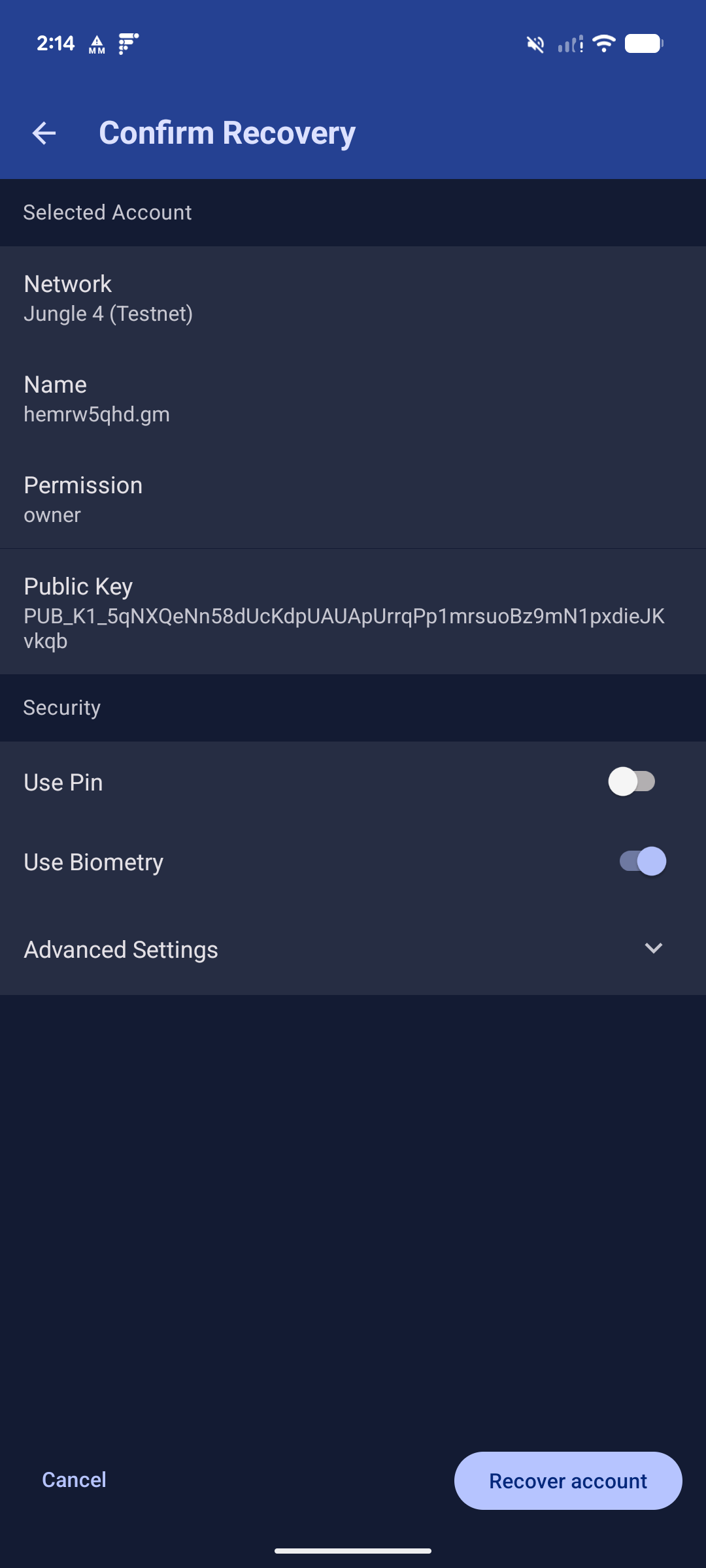 |
| Step 6 Recovery Complete You should be all set! Your account will now appear in your list of accounts in Anchor and you should be able to sign transactions without issue. To return to your accounts, press "Done" | 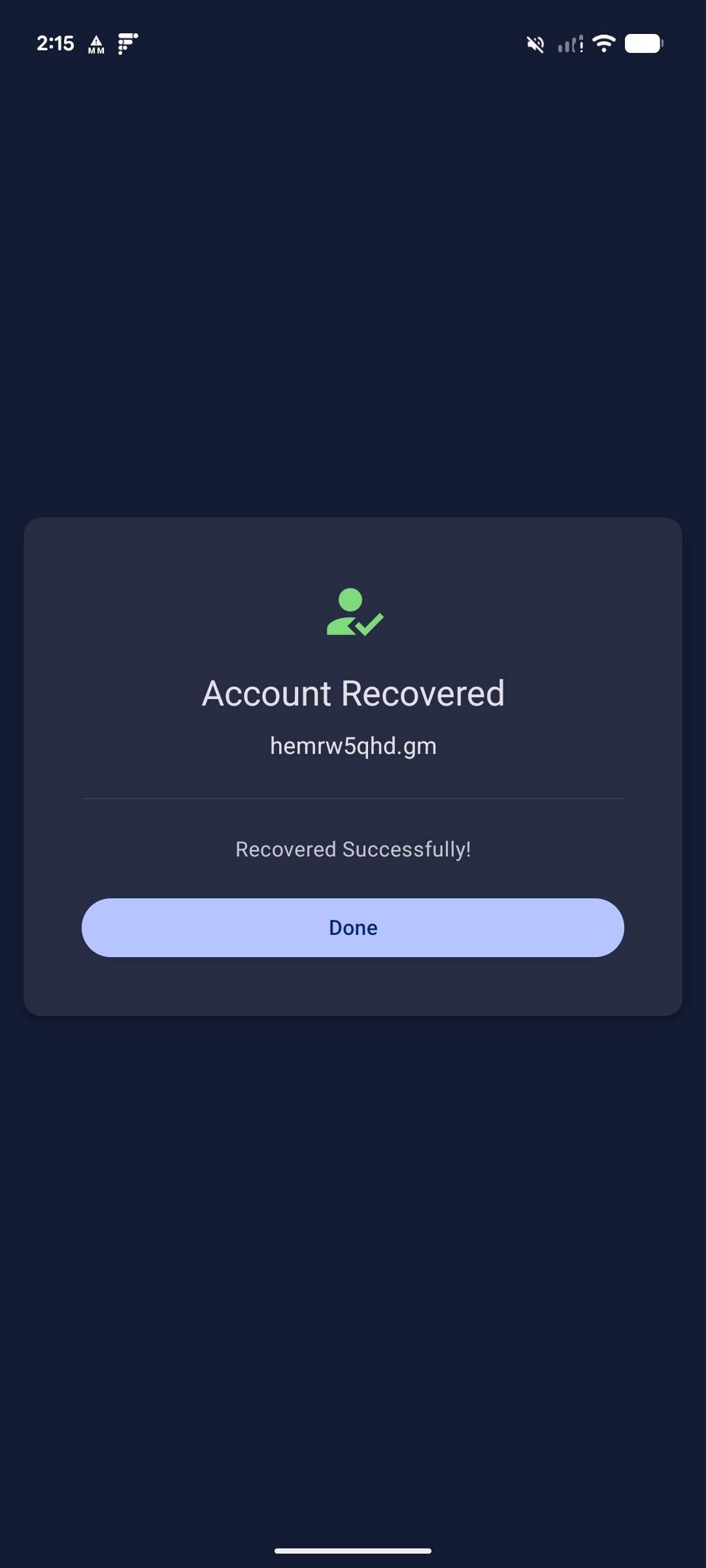 |
If you have any questions or concerns, please feel free to reach out to us at support@greymass.com
Was this article helpful?
That’s Great!
Thank you for your feedback
Sorry! We couldn't be helpful
Thank you for your feedback
Feedback sent
We appreciate your effort and will try to fix the article